


Table of Contents
ToggleJoy-Con drift is arguably the most infamous hardware issue plaguing Nintendo Switch owners, and the Switch Lite is no exception. That telltale phantom input, where your character drifts across the screen without touching the stick, has frustrated millions of gamers since the console’s launch. The good news? A Nintendo Switch Lite joystick replacement is totally doable at home, costs a fraction of sending it in for repairs, and takes less than an hour if you’re careful. This guide walks you through everything you need to know to diagnose the problem, gather the right tools, and execute the repair yourself. Whether you’re a casual handheld player or a competitive gamer who can’t afford downtime, fixing your own joystick is a skill worth mastering.
Key Takeaways
- Nintendo Switch Lite joystick replacement is an affordable DIY fix costing $20-60 that takes under an hour and saves hundreds compared to professional repairs.
- Joy-Con drift is caused by potentiometer wear inside the analog stick—use the Calibrate Control Sticks tool to diagnose the problem before attempting a replacement.
- Essential tools for replacement include a Y00 precision screwdriver, plastic pry tool, tweezers, and rubbing alcohol; many replacement kits include these items to simplify the repair.
- Choose between genuine Nintendo modules ($40-60) for guaranteed compatibility or Hall Effect third-party alternatives ($20-40) that resist drift but require technical research beforehand.
- Test your new joystick thoroughly by running the calibration tool and playing games with intense stick use for 15-30 minutes to confirm the replacement was successful.
- Prevent future drift by minimizing moisture and dust exposure, avoiding aggressive stick movements, and keeping the console in dry environments with proper storage.
Understanding Joy-Con Drift on the Switch Lite
What Causes Joy-Con Drift
Joy-Con drift stems from wear and tear inside the analog stick’s potentiometer, the small component that registers your input. The Switch Lite’s joysticks use the same internal mechanism as standard Joy-Cons, and they’re susceptible to the same degradation. Heavy use, dust accumulation, and sometimes manufacturing defects cause the potentiometer to lose calibration, resulting in erratic or continuous input signals even when you’re not touching the stick.
It’s not a design flaw unique to the Lite: it’s a physics problem. The potentiometer in Joy-Cons experiences thousands of micro-movements daily. Over time, sometimes within months for heavy users, sometimes over a year for casual players, the contacts wear down. Humidity, sweat, and dust accelerate the process. Nintendo has addressed this in newer Joy-Con revisions with improved materials, but older units remain vulnerable.
The Lite’s integrated joysticks can’t be swapped out like detachable Joy-Cons, which means you’re replacing the entire joystick module rather than the stick alone. This is actually simpler than it sounds once you know what you’re doing.
Signs Your Joystick Needs Replacement
Drift manifests in specific ways. Your character might walk or look in a direction without input, cameras drift during cutscenes, or menus scroll on their own. In competitive games, this is game-breaking, imagine your crosshair drifting during a crucial shot in an FPS or your character wandering off a platformer edge.
Other indicators include dead zones that expand beyond normal, stick input that requires excessive force to register, or inconsistent response times. You might notice it in one direction first (usually down-left), then it spreads. Some players experience intermittent drift that comes and goes, which is an early warning sign.
The easiest way to confirm drift is to launch the Calibrate Control Sticks tool in your Switch Lite’s settings (System Settings > Controllers and Sensors > Calibrate Control Sticks). Move the stick through its full range. If it traces a rough circle with gaps or registers input when resting, you’ve got drift. If recalibration doesn’t fix it after multiple attempts, replacement is your next step.
Before You Start: Tools and Preparation
Essential Tools You’ll Need
You don’t need a full toolkit. Here’s what actually matters:
- Precision screwdriver set (especially size Y00, which is specifically for Switch security screws)
- Plastic pry tool or spudger (metal tools risk scratching or damaging components)
- Tweezers (grabbing small parts and connectors)
- Rubbing alcohol or isopropyl alcohol (90% or higher) (cleaning contacts)
- Small bowl or container (keeping screws organized)
- Flashlight or headlamp (seeing inside the console)
- Anti-static wrist strap (optional but recommended for peace of mind)
Don’t go full overkill. A cheap precision screwdriver set from any electronics retailer runs $10-20. The pry tool is crucial, using a butter knife or random metal object is how people scratch circuit boards. Many replacement joystick kits include the Y00 screwdriver and pry tool, which is convenient.
Choosing the Right Replacement Joystick
You have two main options: genuine Nintendo replacements or third-party alternatives.
Genuine Nintendo joystick modules are the safest bet. They’re the exact same parts Nintendo uses in factory repairs. They’re pricier ($40-60 each) but come with a warranty and guaranteed compatibility. You can source them from authorized resellers or specialty gaming retailers.
Third-party joystick modules (brands like GuliKit, Extremerate, or SCUF) often use Hall Effect sensors instead of potentiometers, meaning they’re theoretically immune to drift. They cost $20-40 and claim to be superior. The catch: you’re trusting a non-official product, and some have reports of quality inconsistency. That said, many veteran repairers swear by Hall Effect sticks for the durability alone.
For your first repair, genuine parts are the conservative choice. If you’re replacing sticks later and want to future-proof, Hall Effect upgrades are worth considering. Make sure whatever you buy is explicitly compatible with the Switch Lite, don’t accidentally order Joy-Con replacements, which are a different shape.
Safety Precautions and Workspace Setup
Power off your Switch Lite completely and let it sit unplugged for a few minutes. Don’t work on a powered device.
Set up on a clean, well-lit, flat surface, your desk works fine. A white or light-colored mat helps you spot small screws if they drop. Organize screws as you remove them: label them if needed (there are several different screw lengths). Take photos or a video as you disassemble: you can reference it later when reassembling.
Work somewhere with minimal dust. If you’re in a particularly dusty environment, consider a dust mask or working near a window. Keep liquids away from your workspace. If you’re wearing static-prone clothing (like wool), an anti-static wrist strap connected to a grounded surface is worth wearing, though modern electronics are fairly resistant to static damage.
Avoid rushing. This repair genuinely takes 30-60 minutes if you’re methodical. Hurrying causes mistakes, dropped screws, bent ribbon cables, or damaged connectors. Clear your schedule and treat it like a surgery, not a chore.
Step-by-Step Joystick Replacement Process
Disassembling Your Switch Lite
Start by removing the bottom panel of your Lite. You’ll see three screws: two smaller ones on either side and one larger one in the middle. Use your Y00 screwdriver to remove all three. Keep these screws separate from other screws, they’re easy to confuse later.
Gently peel back the bottom panel. There’s a small ribbon cable connecting the battery to the motherboard, don’t rip it. Carefully disconnect this ribbon by lifting the small black latch on the connector, then gently sliding the ribbon out. Set the bottom panel aside.
Now you can see the battery. It’s held in with adhesive, so carefully peel it up and disconnect the battery connector from the motherboard. Remove the battery entirely, this prevents any chance of a short circuit while you’re working. Set it somewhere safe.
With the battery out of the way, you’ll see six more screws holding the screen/digitizer assembly to the motherboard. Remove all six (they’re all the same size). Again, organize these separately.
Lift the screen assembly gently, there are thin ribbon cables connecting it to the motherboard. Carefully flip the screen back like you’re opening a book, keeping the ribbons connected. This gives you access to the motherboard without fully disconnecting the screen, which is much safer for a first-timer.
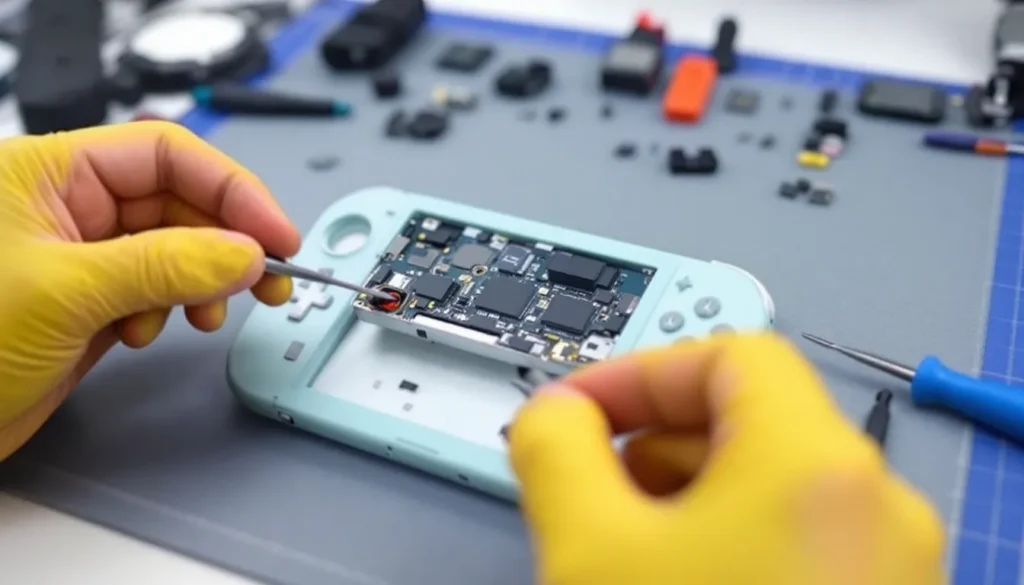
You’re now looking at the motherboard. The joystick module you need to replace is located at the bottom-left corner of the board (your left as you’re facing it). It’s a small rectangular component, roughly the size of a postage stamp.
Removing the Defective Joystick
The joystick module is soldered directly to the motherboard. You can’t unsolder it without specialized equipment like a heat gun or desoldering station, which most gamers don’t have. Instead, you’re replacing the entire module, which Nintendo designed to be removable.
Look closely at the joystick. You’ll see a small ribbon cable running from it to the motherboard, and it’s held in place by a tiny connector or solder points depending on your specific Lite revision. Older Lite models have a ribbon connector: newer ones might be direct-soldered.
If there’s a ribbon connector: Gently lift the small black latch and slide the ribbon out. Done.
If it’s soldered directly: This is trickier. You’ll need either a desoldering station (expensive) or you’ll need to carefully desolder the four connection points using a soldering iron. If you don’t have soldering experience, this is where you’d stop and consider professional repair or upgrading to a pre-cut joystick module designed for soldering.
Most replacement joystick kits sold online come with the connector already pre-installed, which simplifies the replacement significantly. Check your kit before starting, the seller should specify whether soldering is required.
Once the ribbon is disconnected, you’ll see the module itself is held down by adhesive. Use your plastic pry tool to carefully lift one corner. Work your way around, gently peeling the module up. Use rubbing alcohol on a cloth to clean away any remaining adhesive residue from the motherboard. Let it dry completely before installing the new one.
Installing the New Joystick Module
Remove the backing from your new joystick module’s adhesive pad (most pre-made kits include this). Carefully align the new module in the same position where the old one sat. Press firmly and hold for 10-15 seconds to ensure good contact.
Connect the ribbon cable. If your new module uses a connector, lift the black latch, slide the ribbon fully in, and lower the latch. Make sure it clicks or seats firmly, a loose connection means the joystick won’t respond.
If your kit requires soldering, this is where you’d use your soldering iron. Heat each connection point for 2-3 seconds, apply a tiny amount of solder, and remove the iron. Don’t overheat or use too much solder, a clean joint is better than a glob. If soldering intimidates you, watch a video tutorial first or ask someone experienced to help.
Let any adhesive or solder cure for a minute before moving on. You’re not in a rush at this stage.
Reassembling Your Console
Reverse the disassembly process methodically. Start by lowering the screen assembly back into place and reconnecting the ribbon cables (usually there are two: one for the display and one for the touch digitizer). Push each ribbon in fully and ensure the black latches are locked.
Rescrew all six screws holding the screen assembly down. Tighten them snugly but not aggressively, you’re not drilling into wood.
Reconnect the battery connector to the motherboard. Replace the battery, pressing it down so the adhesive holds (or add new adhesive strips if the old ones no longer stick).
Reconnect the small ribbon cable that runs from the battery to the motherboard. Slide it fully into the connector and lock the latch.
Replace the three screws on the bottom panel: the two smaller ones on either side and the larger one in the middle. Tighten them firmly but not with excessive force, cross-threading or stripping the screw holes is the enemy.
Power on your console. If it boots normally, you’re 90% of the way there.
Testing and Calibration
How to Calibrate Your New Joystick
Once your Switch Lite boots up, navigate to System Settings > Controllers and Sensors > Calibrate Control Sticks. This is the same tool you used to diagnose drift earlier, and it’s now your verification tool.
Select the left Joy-Con (your newly repaired joystick). Follow the on-screen prompts: hold the stick at neutral (center), then move it in a full circle. It should trace a smooth, complete circle without gaps or drift. The circle should be roughly centered on the screen.
If the circle looks perfect, congrats, your replacement is working. If there are still gaps or the circle drifts, you might have a connection issue. Remove the bottom panel, check that the ribbon is fully seated, and reseat it if needed.
After the visual calibration test, the system will ask you to press down on the stick and verify the push-down input registers. Your new joystick should handle this cleanly.
One calibration cycle is usually enough, but you can run it multiple times without issue. Each run provides slightly different results due to human variation in the test, so a single perfect run means you’re good.
Performing a Full Functionality Test
Calibration is the technical check: now test the joystick in actual gameplay. Load up a game that relies heavily on analog input, a platformer like Super Mario Maker 2 or a 3D adventure like The Legend of Zelda: Breath of the Wild works great.
Play for at least 15-30 minutes and test all the stick’s functions: full 360-degree rotation, camera control, character movement, menus, and stick-press inputs. Pay attention to edge cases, drift often shows up first in specific directions (commonly down-left) under sustained pressure.
If everything feels responsive and natural, the repair is a success. Your new joystick should feel slightly different from the old one (new components tend to feel slightly stiffer initially), but this normalizes after a few hours of play.
If drift reappears during testing, you likely have a connection issue or received a defective replacement module. Reseat the ribbon cable or contact the retailer for a replacement. Third-party vendors usually offer 30-day warranties: genuine Nintendo parts often come with longer coverage.
After your gameplay test passes, you’ve got your console back. Keep those screws safe, you might need them later for maintenance or future repairs. Document your repair with photos for future reference or if you need to troubleshoot something down the line.
Professional Repair vs. DIY: Which Is Right for You
Cost Comparison and Warranty Considerations
DIY repair costs roughly $20-60 depending on whether you choose third-party or genuine Nintendo replacement modules. If you already own a precision screwdriver set and pry tools, you’re looking at the module cost alone. Factor in maybe $10-20 if you’re buying tools for the first time. Total investment: $30-80.
Professional repair through Nintendo’s official repair service runs $25-45 depending on your region and warranty status. You’ll also spend 1-2 weeks without your console while it’s in transit and being serviced. Third-party repair shops (found on platforms like How-To Geek and gaming forums) typically charge $40-80 plus shipping.
Here’s the financial math: DIY breaks even against Nintendo’s official service quickly. Professional repair only makes financial sense if you’re nervous about opening your console or if your Lite is still under warranty and you want to preserve that coverage.
Warranty implications: Opening your Switch Lite yourself voids the manufacturer’s warranty if it was still active. If your Lite is old enough to need joystick replacement, it’s likely out of warranty anyway. But verify your warranty status before cracking it open. If you’re still within the return window or covered by an extended warranty, professional repair preserves that coverage.
Third-party replacement modules sometimes come with their own warranty (typically 1-2 years), which can actually be better than Nintendo’s original warranty in some cases.
When to Seek Professional Help
Some situations warrant professional repair instead of DIY:
You don’t trust yourself with precision work. If the idea of opening your console makes you uncomfortable or you’ve had bad experiences with DIY electronics repair, the peace of mind from professional service is worth the extra cost. A botched repair can damage your motherboard beyond recovery.
Your Lite is still under manufacturer warranty and you want to preserve coverage. If it’s a newer unit and you’ve got warranty coverage, use it. Nintendo’s repair is safe, reliable, and you get your console back guaranteed functional.
The joystick module is soldered directly and you lack soldering experience. If your Lite model requires soldering and you don’t have a soldering iron or experience, trying to learn mid-repair risks expensive mistakes. Professional repair handles this.
Multiple components are failing. If you’re experiencing drift plus screen issues, battery problems, or other hardware failures, professional diagnostics might identify problems you’d miss. A technician can quote you on total repair costs upfront.
You’ve already attempted DIY and something went wrong. If your first attempt resulted in loose connections, missing screws, or components that won’t reassemble, a professional might be able to salvage it. They have the tools and experience to recover from common mistakes.
For most gamers with basic hand-eye coordination and the ability to follow instructions, DIY is the smarter choice. TechRadar’s hardware reviews often feature success stories from gamers who’ve tackled these repairs themselves, and the community consensus is that it’s genuinely straightforward if you take your time. You can also find community forums and subreddits dedicated to Switch repairs where thousands of people document their experience.
Preventing Future Joy-Con Issues
Best Practices for Longevity
Now that you’ve got a working joystick, protect it. The number-one factor determining stick longevity is usage intensity. Competitive players rack up thousands of hours and wear sticks out faster than casual gamers. This is unavoidable if you play games like fighting games or FPS titles, but awareness helps, rotate between games or take breaks.
Minimize moisture and dust exposure. Don’t use your Switch Lite while eating or drinking nearby. Sweat and liquid are enemies of joysticks. Keep the console in a dry environment. If you use it while gaming intensely and sweating, wipe down the exterior periodically.
Store it properly. Don’t leave your Lite in hot cars or humid environments for extended periods. Extreme temperatures degrade components and adhesives. A carrying case protects it from dust and impacts.
Avoid rapid temperature changes. Don’t leave your console in a cold car and immediately use it in a warm room. Condensation forms inside and can damage components. Wait 20-30 minutes for temperature to normalize.
Be gentle with joystick movement. You don’t need to mash the stick like it owes you money. Smooth, deliberate movements put less stress on components than aggressive jabbing. This is especially true for menus, you don’t need to aggressively flick the stick to scroll.
Maintenance Tips for Gamers
Regular maintenance extends stick life significantly. Every few months, run the calibration test. If you notice even slight drift developing, nip it early, the longer you ignore it, the worse it gets. Early intervention prevents total failure.
Clean your console regularly. Use a soft, dry cloth to wipe the exterior. For crevices around the joystick, a compressed air duster works wonders, it blows out dust without introducing moisture. Never use liquids directly on the joystick area. A barely-damp cloth on the exterior is fine, but keep it away from openings.
If you notice the stick is becoming slightly stiff or grinding sounds develop, stop using it and address it immediately. These are early warning signs before drift manifests. Continuing to use a degrading stick accelerates failure.
Rotate your control method if possible. Some games let you switch between handheld and docked play with a Pro Controller. If you’re playing a marathon session on a game that works with a Pro Controller, alternate between handheld and docked modes. This reduces consistent wear on a single joystick.
Keep software updated. Firmware updates sometimes include joystick calibration improvements. Nintendo Switch Archives on Pixelhearth tracks updates as they release. Install updates when available.
If your replacement joystick was a Hall Effect model, you’ve essentially future-proofed against drift for this generation. Enjoy knowing your stick should outlast your interest in the console. If you went with a genuine Nintendo module, plan for eventual replacement if you’re a heavy user, but a year or two of consistent gameplay is realistic before drift might develop again.
Consider keeping a spare joystick module and tools on hand once you’ve done this repair once. The second repair takes 20 minutes because you know the process. For competitive players or streamers who can’t afford console downtime, keeping a spare is a smart investment.
Conclusion
Nintendo Switch Lite joystick replacement isn’t the intimidating hardware surgery it might sound like. With the right tools, a methodical approach, and patience, you can restore your console to full functionality in under an hour for a fraction of professional repair costs. The process teaches you valuable troubleshooting skills that apply to other electronics, which is bonus knowledge.
Your first repair is the hardest mentally, once you’ve opened your console and seen how it’s constructed, future maintenance feels routine. Many gamers who fix their own joysticks end up becoming the person in their friend group who handles other people’s repairs, which is its own reward.
Whether you choose DIY or professional repair depends on your comfort level, warranty status, and timeline. But if you’re even slightly mechanically inclined and can spare an hour, the DIY route is the smarter play. You’ll spend less money, get your console back immediately, and gain confidence handling your own hardware.
The Nintendo Switch Lite is a durable handheld when treated right, and joystick replacement is a normal maintenance task, not a sign of failure. Keep playing, maintain your device, and enjoy hundreds more hours of portable gaming.