

Table of Contents
ToggleYour Nintendo Switch is acting up. Games are crashing, performance is tanking, or you’re just ready to sell it and start fresh. A factory reset might be exactly what you need, but it’s not something you want to mess up. Whether you’re dealing with persistent bugs, prepping your console for a new owner, or troubleshooting a bricked system, knowing how to properly factory reset your Nintendo Switch (or Switch Lite, or Switch OLED) is essential knowledge for any gamer. This guide walks you through the exact steps, the gotchas you need to avoid, and what to do when things don’t go smoothly.
Key Takeaways
- A factory reset for your Nintendo Switch erases all user profiles, games, and corrupted files, returning your console to factory defaults and resolving performance issues like crashes and lag.
- Back up your save data to the cloud using Nintendo Switch Online before resetting, as the reset process is permanent and local saves cannot be recovered without prior preparation.
- Digital games linked to your account won’t be lost after a factory reset—you can redownload them anytime using the same Nintendo Account, but you’ll need an internet connection to authenticate and restore them.
- Delink your Nintendo Account from the console before selling or gifting your Switch to prevent license conflicts and protect your personal information from the new owner.
- The factory reset process takes 5–15 minutes on any Switch model (standard, Lite, or OLED) and requires stable power; avoid turning off or unplugging your console during the reset to prevent system corruption.
- If a reset hangs for more than 20 minutes, perform a hard reset by holding Power + Volume Up + Volume Down simultaneously for 10–15 seconds, then retry the standard factory reset process.
Why You Might Need to Factory Reset Your Nintendo Switch
There are plenty of reasons to factory reset your Nintendo Switch. Performance degradation is one of the biggest culprits, if your console is running sluggish, apps are taking forever to load, or games are stuttering even though having plenty of free storage, a reset can clear out corrupted system files that accumulate over time.
Crashing is another common trigger. If specific games or your entire system keeps freezing mid-session, a factory reset can eliminate software conflicts that no amount of clearing cache will fix. Some users hit this issue after a botched system update or after installing sketchy third-party software.
You might also reset if you’re selling, trading, or gifting your Switch to someone else. A proper factory reset wipes all your data and user accounts, ensuring the new owner gets a clean slate and you don’t leave personal information behind.
Then there’s the technical reset scenario, when your console won’t boot, gets stuck in a loop, or becomes completely unresponsive. A hard reset is sometimes the only way to bring it back to life. Some competitive players also reset between seasons to start fresh or troubleshoot latency issues (though this is rare and usually a last resort).
Before You Reset: Important Considerations
A factory reset is permanent. Once you pull the trigger, your Switch returns to factory defaults, all accounts, save data, and installed games are gone. You can recover some of this, but only if you plan ahead.
Backing Up Your Data
Before resetting, back up your save data to the cloud. If you have a Nintendo Switch Online subscription (which most competitive players should have anyway), your game saves are already auto-syncing to Nintendo’s servers. You can verify this in System Settings > Data Management > Save Data Cloud Backup. Make sure the games you care about are listed there.
If you don’t have Switch Online, you can’t back up saves to the cloud, they’ll be lost. Some games like The Legend of Zelda: Breath of the Wild and Animal Crossing: New Horizons handle cloud save restrictions, but many don’t support cloud backup at all. Check the specific titles you’re worried about before proceeding.
One exception: if you’re planning to set up the same user profile on the same console after the reset, your saves will still be there. Nintendo ties save data to user profiles, so if you’re just clearing the system and keeping your account, recovery is straightforward.
Delinked Accounts and Digital Games
Here’s where most people run into trouble. If you’ve got digital games linked to your account, they’ll disappear after a reset, but you won’t lose ownership. You can redownload them anytime using the same Nintendo Account. But, you’ll need an internet connection to authenticate and re-download, and it takes time. Plan accordingly if you’ve got a massive library.
If your account is tied to multiple consoles (like a primary and secondary Switch), deactivating your account on the resetting console before you wipe it helps prevent license conflicts afterward. Head to System Settings > Users and Accounts > Other and make sure your account is delinked properly. If you’re resetting because you’re selling the console, definitely delink your account first, otherwise the new owner might hit paywall issues when trying to access your digital purchases.
Step-by-Step Guide to Factory Reset Your Nintendo Switch
Factory Reset Through System Settings
The standard factory reset is straightforward and doesn’t require any special hardware.
- Turn on your Nintendo Switch and navigate to System Settings (the gear icon on the home screen).
- Scroll down to the bottom of the settings menu and select “System.” You’re looking for options related to formatting or erasing data.
- Find “Format Console” (on standard Switch) or “Delete All Content and Settings” (on Switch Lite and Switch OLED). The exact wording varies slightly between models, but it’s always in the System submenu.
- Select the reset option. Your console will warn you that all data will be deleted. Read the warning, it’s not exaggerating.
- Confirm the reset. The system might ask you to enter a PIN or confirm your choice a second time. This is intentional friction to prevent accidental wipes.
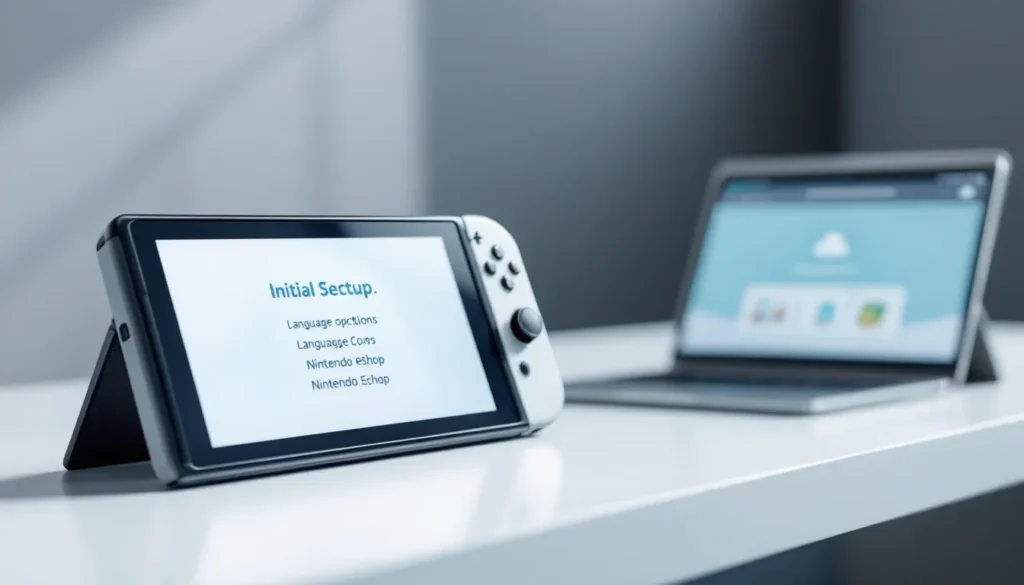
- Wait for completion. The reset process takes 5-10 minutes depending on how much data is on your console. Don’t turn it off or unplug it during this time. Your Switch will reboot when finished and present you with the initial setup screen.
If you can’t access System Settings because the console won’t turn on or is completely frozen, you’ll need a hard reset instead (more on that below).
What Happens During the Reset Process
When you initiate a factory reset, your Nintendo Switch does several things simultaneously. It erases all user profiles and accounts from the console’s internal storage. It deletes installed games, applications, and downloaded content. It also clears temporary files, cached data, and any corrupted system files that might’ve been causing problems.
Your console’s firmware (the operating system) stays intact, you’re not downgrading or rolling back to an older system version. The reset only wipes the data and user-facing software, leaving the core system stable.
After the wipe completes, your Switch is identical to a brand-new console fresh from the factory. It’ll boot up, show the language selection screen, and guide you through the initial setup process just like day one. All your prior issues, crashes, lag, corrupted files, are gone because they were tied to accumulated data, not the firmware itself.
Resetting Your Nintendo Switch Lite
The Switch Lite reset process is nearly identical to the standard Switch, with one key difference: there’s no dock involved, so you can’t accidentally unplug it during the reset if you’re plugged in via USB-C.
Navigate to System Settings > System > Delete All Content and Settings. Confirm the warning, and wait. The Lite performs the same factory reset as its bigger sibling, erasing all profiles, games, and data from its onboard storage. Since the Lite doesn’t have a microSD card slot, everything is wiped from internal memory, there’s no secondary storage to worry about.
One gotcha: the Switch Lite battery should ideally be above 50% before you start a reset. If it dies mid-process, you could corrupt the system. Plug it in, let it charge for a bit, and make sure you’re starting with a solid battery level. A reset won’t take more than 10-15 minutes even on a slower Lite, but don’t cut it close with power.
After the reset completes, your Lite boots fresh and is ready for a new user or account setup.
Factory Resetting Your Nintendo Switch OLED
The Switch OLED reset procedure is functionally identical to the standard Switch. The main differences are the screen clarity (which you won’t notice during a reset, obviously) and the slightly larger storage (64GB instead of 32GB), but the reset path is the same.
Head to System Settings > System > Delete All Content and Settings, confirm, and wait. The OLED model’s bigger battery means it’s less risky to perform a reset with moderate power levels, but you should still aim for 50% or higher battery before starting. The reset takes about 10 minutes on the OLED.
One note: if you’ve got an external microSD card installed, the reset doesn’t touch it. Games stored on the microSD card will remain, but they’ll become unplayable because their licenses and data are tied to user profiles that no longer exist. If you’re resetting the OLED, pull the microSD card out first, or don’t, just know that you’ll need to redownload everything through your account afterward.
What to Do After Your Factory Reset
Reinstalling Games and Applications
After your reset completes, your console is blank. No games, no apps, just the basic Switch OS. If you have a Nintendo Account linked to your profle with digital games, here’s how to get them back:
- Create or log into a user profile using your Nintendo Account during setup.
- Connect to the internet. Your Switch needs WiFi to redownload games.
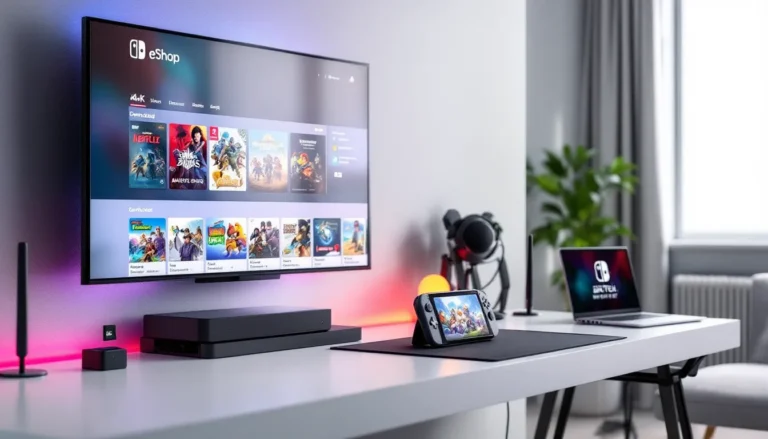
- Open the Nintendo eShop. Tap the eShop icon and navigate to “My Apps” or “My Games.”
- Find your purchased titles and select “Download.” Games start queuing for download, you can select multiple simultaneously.
- Wait. Redownloading a large library takes time, especially over WiFi. A 15GB game might take 30-45 minutes depending on your connection speed.
Physical game cartridges need no redownload, just pop them in and play. They work immediately after the reset since the cartridge itself contains all the game data.
If you have apps like YouTube, Hulu, or Nintendo Switch Online, redownload those from the eShop too. Free-to-play titles like Fortnite and Apex Legends are in the eShop and redownload instantly.
Recovering Your User Profile and Data
If you backed up your save data to the cloud with Nintendo Switch Online, recovery is automatic. Once you log into your Nintendo Account after setup, go to System Settings > Data Management > Save Data Cloud Backup. Select each game and choose “Download” to pull your saves back down. This restores your progress instantly, no grinding required.
If you didn’t have Cloud Backup enabled, local saves are gone permanently. That’s the biggest risk with factory resets. If you were playing Mario Kart 8 Deluxe casually and reached 50,000 points, that progress evaporates. Competitive save files with specific loadouts, stats, or achievements? Lost. This is why backing up beforehand matters so much.
One silver lining: some games store progress through their own servers rather than Switch save files. Games like Splatoon 3, Pokémon Legends: Arceus, and battle royales often sync to accounts, so your progress might partially survive even without Cloud Backup. Check individual game documentation if you’re unsure.
If you’re setting up a used or refurbished Switch after a factory reset, the previous owner’s data is completely wiped. You’re starting clean, no remnants of their accounts, games, or saves linger.
Troubleshooting Common Factory Reset Issues
Reset Stuck or Won’t Complete
Occasionally a reset hangs or appears frozen. If your Switch has been “resetting” for more than 20 minutes with no progress, try a hard reset. Hold the power button for 15 seconds to force shutdown, then turn it back on and retry the factory reset. If it hangs again, you might be dealing with corrupted internal storage.
In rare cases where the console won’t complete a reset through normal System Settings, you can try a hard reset instead. Press and hold the Power + Volume Up + Volume Down buttons simultaneously for 10-15 seconds until the console shuts down. Power it back on and return to System Settings to retry the factory reset. A hard reset sometimes clears enough corrupted data to let the standard reset process complete.
If you’re still stuck after two attempts, the Nintendo Switch charging cable connection might be loose. Ensure your Switch is properly charged and connected to power during the process. Low battery mid-reset can interrupt the operation and leave your system in a partially wiped state.
Unable to Access Your Games After Reset
You successfully reset but can’t redownload your digital games. First, verify your Nintendo Account is properly linked. Go to System Settings > Users and Accounts and confirm your account is registered. If it’s not, add it.
Second, check your internet connection. A weak or unstable WiFi link will cause downloads to stall. Move closer to your router or use a wired connection via USB adapter if available.
Third, visit the Nintendo eShop and look at your purchase history (scroll down in the eShop and select “Your Account”). If your games don’t appear in “Redownloadable Games,” there might be a region mismatch. If your eShop account is set to a different region than where you originally purchased games, they won’t show up for download. This is rare but happens if you’ve moved countries or changed your account region.
If you’ve checked all three and still can’t redownload, your Nintendo Account might have purchase restrictions or holds placed on it. Log into your account on Nintendo’s website and check your account security and purchase settings.
One more scenario: if you’re trying to redownload a game that was on an external microSD card and you’ve since lost or formatted that card, there’s no recovery. The microSD card itself doesn’t get backed up, only the saves do. You’ll need to redownload the game to internal storage.
Conclusion
A factory reset clears out the clutter your Nintendo Switch accumulates over time, corrupted files, crashed processes, and bloat that slows everything down. Whether you’re facing performance issues, preparing to sell your console, or just need a fresh start, the process is straightforward: System Settings > System > Delete All Content and Settings, confirm, and wait.
The critical step is planning ahead. Back up your save data through Nintendo Switch Online before you reset. Delink accounts if you’re selling or trading the console. Pull out microSD cards if you want to keep them separate. A few minutes of preparation prevents hours of frustration during recovery.
Your reset might take 10-15 minutes, but the payoff is worth it, a console that feels brand new again, running at full speed with no lingering issues. After setup, rebuild your game library, pull down your cloud saves, and you’re back to gaming at full capacity. Follow these steps and you’ll reset like a pro, whether you’re on a standard Switch, Switch Lite, or Switch OLED.
Trouble accessing features after your reset? Check whether your Nintendo Switch dock is connected properly if you’re docking to TV. And if you’re planning to use your console with a television after reset, understanding how to play on TV ensures you’re set up correctly from the start.