


Table of Contents
ToggleDownloading games on your Nintendo Switch has become as essential as the console itself. Whether you’re jumping into your first indie title or grabbing the latest blockbuster release, the process is straightforward, but it helps to know the ins and outs. This guide covers everything from navigating the eShop to troubleshooting download hiccups, ensuring you spend less time fiddling with settings and more time actually playing. We’ll walk you through setup, purchasing, storage management, and alternative download methods so you’re never left guessing.
Key Takeaways
- Download games on Nintendo Switch through the eShop marketplace using your Nintendo Account and a stable internet connection—purchases are tied to your account, allowing redownloads on any linked Switch.
- The Switch’s 32GB internal storage fills quickly; invest in an affordable microSD card (256GB or larger) early to expand storage and avoid hitting the storage wall that catches newer players.
- Before downloading, ensure your system software is updated, check available storage space, and use 5GHz WiFi for faster download speeds—modern AAA games can take 2-4 hours on slower connections.
- You can share purchased games with other user accounts on the same console, redeem game codes in seconds, and pre-order games with discounts before the full download happens on release day.
- Nintendo Switch Online membership ($20/year) enables online multiplayer, cloud save backups, and access to classic NES and SNES games, though it’s not required for single-player gaming or digital game ownership.
Understanding Nintendo Switch Game Download Options
The Nintendo eShop Explained
The Nintendo eShop is your primary marketplace for digital games on Switch. It’s accessible directly from your home screen and functions like any modern app store, browse, purchase, download. The eShop hosts everything from AAA titles to indie gems, with regular sales and discounts. You can filter by category, price, rating, and release date to find exactly what you’re hunting for.
One key advantage: eShop purchases are tied to your Nintendo Account, not the specific console. This means you can redownload any game you’ve purchased on any Switch linked to that account. Prices vary by region, so a game in the US eShop might cost less or more than the same title in Europe or Japan.
Digital vs. Physical Games: Which Is Right For You
Digital downloads offer instant gratification, no waiting for shipping, no lost cartridges. You’re ready to play the moment the download finishes. Physical cartridges, on the other hand, don’t consume internal storage (though most modern Switch games push you toward digital anyway due to day-one patches).
Here’s the breakdown:
Digital Downloads:
- Play immediately after purchase
- No physical cartridge to lose or damage
- Contribute to total console storage usage
- Can’t resell or trade in
- Subject to licensing agreements (if your account is banned, you lose access)
Physical Cartridges:
- No storage burden for the base game
- Resellable or tradeable
- Requires installing the latest patch from the eShop anyway
- More expensive due to manufacturing and distribution
- Day-one patches mean you still need internet for optimal performance
Most Switch owners gravitate toward digital for convenience. If you’re building a library of 50+ games, storage becomes a real consideration, but we’ll cover that later.
Preparing Your Nintendo Switch For Downloads
Check Your Storage Space And Update System Software
Before you start downloading, make sure your Switch is ready. First, check your available storage. Go to System Settings > System > Storage to see how much space you have left. The Switch comes with 32GB of internal storage, but Nintendo’s OS takes up roughly 5-6GB, leaving you with about 26GB usable. A single modern AAA title can be 25-30GB or more, so you might max out your internal storage with just two or three games.
Next, update your system software. Head to System Settings > System > System Update to check for the latest firmware. Nintendo regularly patches security vulnerabilities and adds features, and you can’t download from the eShop without being current. This usually takes 5-15 minutes depending on your internet speed.
Set Up Your Nintendo Account And Payment Method
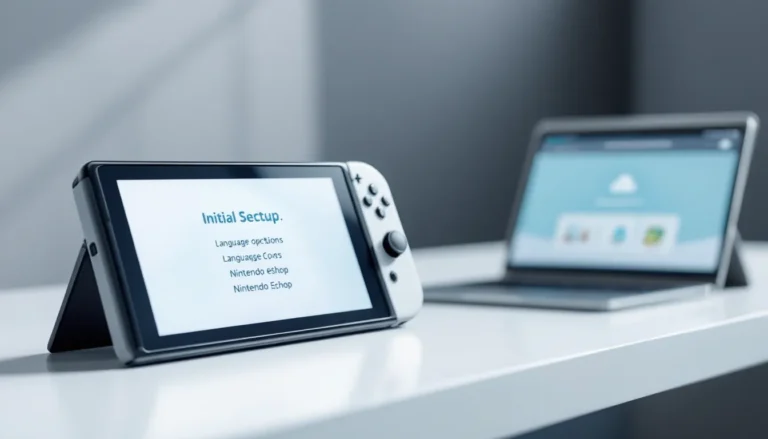
You need a Nintendo Account linked to your Switch profile to purchase games. If you’re setting up a new Switch, you’ll be prompted to create an account during initial setup. If you already have one, sign in and you’re good to go.
For payment, Nintendo accepts:
- Credit and debit cards (Visa, Mastercard, American Express, Discover)
- Nintendo eShop cards (purchased from retailers)
- PayPal (in select regions)
- Your country’s preferred payment method (varies by region)
Add your payment method by going to eShop > Shop Menu > Shop Settings > Your Account > Payment Method. Nintendo’s payment system is secure and encrypted, and you won’t be charged anything until you actually purchase a game. You can also set up parental controls to restrict spending if you have kids using the console.
Connect To A Stable Internet Connection
Downloads require a stable internet connection. The Switch supports both 2.4GHz and 5GHz WiFi networks. If you’re in a congested WiFi environment (apartment building, dorm, office), try switching to 5GHz for faster, more stable speeds. You can manage WiFi settings at System Settings > Internet > WiFi Settings.
For the best download speeds, sit close to your router or use a 5GHz band if available. Network speeds of 25 Mbps or higher are ideal. If your connection is spotty, a large game (15-30GB) might take 2-4 hours to download. On solid 100+ Mbps connections, expect 10-20 minutes for a 15GB game.
Note: You can’t use mobile hotspot from your phone reliably for large downloads, the connection can drop or throttle unexpectedly.
Step-By-Step Guide: Downloading Games From The eShop
Navigating The eShop Interface
Open the eShop from your home screen, it’s the colorful shopping bag icon. You’ll land on the home page, which features new releases, popular games, and sales. The main categories are accessible from the top menu:
- Best Sellers – top-performing games
- New – recent releases
- Sales – discounted titles
- Browse – search by genre, price, rating, release date
- My Library – games you own
Searching is straightforward. Use the search icon at the top of the eShop to type in a game title. Results filter as you type, and you can tap on any game to open its full store page.
Searching For And Purchasing Games
Once you find a game you want, tap it to open the store page. You’ll see:
- Game title, developer, and ratings
- Price (or “Free” for free-to-play titles)
- Screenshots and video trailer
- Description and game details
- System requirements (most Switch games run on all Switch models, but some games like Pokémon Scarlet/Violet are Switch OLED optimized)
- User reviews and ratings
If you’re buying a physical copy to download later, many Switch game boxes include a download code instead of a cartridge. You’ll see a “Redeem” button instead of a purchase button on pre-ordered or bundled games.
To purchase a digital game, tap the price button (e.g., “$59.99”). The eShop will ask you to confirm payment using your saved payment method. Once you authorize the purchase, the game is added to your account and begins downloading automatically if you have enough storage. If you don’t have space, the eShop prompts you to free up storage before download starts.
Managing Downloads And Installation
Your current and queued downloads are visible in two places:
- Home Screen – a progress bar appears next to the game icon while downloading
- System Settings > Data Management > Software – full list of all your games and their install status
You can pause or cancel a download by tapping the game icon on the home screen and selecting Manage Software. Games download at full speed regardless of whether your Switch is in sleep mode or active (docked or handheld), though sleep mode is slightly faster since the system isn’t running other processes.
Once downloaded, most games launch immediately. But, some titles require an additional “installation” phase, this is especially common with larger AAA games. The Switch unpacks files onto your storage, which can take 5-30 minutes depending on the game size. You can’t play until this completes, but you can dock the console and let it run while you do something else.
Alternative Methods: Pre-Ordered And Bundled Games
Downloading Pre-Order Content
Pre-orders on the Switch eShop work differently than console generations past. You don’t actually download the full game until release day. Instead, you purchase the game early (securing your copy and often getting a discount), and a small placeholder is installed on your Switch. On release day, the full download happens automatically.
Pre-orders are typically 10% off the launch price, and you can cancel anytime before release without penalty. Once the game releases, you’re charged and the full version downloads.
To pre-order:
- Find the game on the eShop
- Tap the price button (labeled “Pre-order” instead of a price)
- Confirm your payment method
- The placeholder installs: the full game downloads on release day
Be aware: some third-party developers release pre-order bonuses as separate downloads. Check the game’s details page to see if pre-order includes exclusive cosmetics or in-game currency that you’ll need to redeem separately through the eShop.
Redeeming Game Codes And Gift Cards
Many Nintendo Switch games come with download codes instead of physical cartridges, common for digital bundles, gift cards, and retail pre-orders. Redeeming a code is simple and takes less than a minute.
To redeem a code:
- Go to eShop > Shop Menu > Redeem Code
- Enter the 16-character code (format: XXXX-XXXX-XXXX-XXXX)
- The game is instantly added to your account
- Download begins automatically if you have sufficient storage
Nintendo eShop Gift Cards work similarly:
- Purchase a gift card from a retailer (GameStop, Best Buy, Target, Amazon, etc.)
- Redeem the code to add credit to your eShop wallet
- Use your wallet balance to purchase games
Gift cards are region-locked, a US eShop card won’t work on a Japanese account, for example. Make sure you’re redeeming in the correct region. Codes never expire, so you can redeem them whenever you’re ready to purchase.
Optimizing Your Gaming Library And Storage
Managing Multiple User Accounts And Game Sharing
The Switch supports up to 8 user accounts per console. Each account has its own game library, save files, and profile. This is useful for households with multiple players or if you want to compartmentalize your accounts.
Game sharing is a crucial feature if you have multiple Switch consoles in your household. When you purchase a game on one account, you can share it with other accounts on the same console without repurchasing. Here’s how it works:
- Account A purchases a game
- Account B on the same console can play it without owning it
- The original purchaser (Account A) can play on any console where their account is active
This is especially valuable for families with multiple Switch users. Just keep in mind that only one account can play a shared game simultaneously. If you’re running two Switches in the same house, both can play the shared game at the same time only if the purchasing account logs in on both consoles.
Expanding Storage With MicroSD Cards
Your 32GB internal storage fills up fast. Fortunately, the Switch supports microSD cards, which are cheap and easy to install. There are three options:
- microSD (128GB) – ~$15-20
- microSD XC (256GB) – ~$25-35
- microSD XC (512GB) – ~$40-60
Nintendo officially recommends microSD cards, and any brand works fine (SanDisk, Kingston, Samsung). A 256GB card gives you room for 60-80 games depending on size, which covers most casual and mid-core players.
To install a microSD card:
- Power off your Switch completely
- Locate the microSD slot on the bottom of the console (opposite the headphone jack)
- Insert the card until it clicks (label-side facing outward)
- Power the Switch back on: it automatically formats the card
- All future downloads go to the microSD card first
Existing games stay on internal storage until you manually transfer them. Go to System Settings > Data Management > Move Data Between Storage Devices to move games to your card, freeing up internal space. Transfer speeds are about 100-150 MB/s, so moving a 15GB game takes roughly 2-3 minutes.
One caveat: do not remove the microSD card while a game is running or installing. The Switch might corrupt the installation. Always power off first.
Troubleshooting Common Download Issues
Slow Download Speeds And Connection Problems
Slow downloads are the most common complaint. The Switch has older WiFi hardware (WiFi 5, released in 2015), so it doesn’t match modern router speeds. Even on gigabit home internet, you’ll rarely exceed 50-80 Mbps on your Switch.
Quick fixes:
- Switch to 5GHz WiFi – If your router broadcasts both 2.4GHz and 5GHz, 5GHz offers faster speeds at shorter range. In WiFi Settings, forget your current connection and reconnect to the 5GHz band (usually labeled with a “-5G” suffix).
- Reduce interference – Move the Switch closer to your router or away from other WiFi-heavy devices (microwaves, other routers).
- Restart your router – Power cycle it for 30 seconds, then reconnect your Switch.
- Clear the Switch’s WiFi cache – Go to System Settings > Internet > WiFi > Forget Network, then reconnect.
If speeds are still terrible even though a strong signal, your ISP might be throttling. Test your home internet speed using a phone or computer: if it’s much faster than your Switch, the issue is the Switch’s hardware. It’s not fixable without upgrading to a newer console model (Switch OLED has slightly better WiFi but not dramatically).
Storage Errors And Failed Downloads
If a download fails partway through, you’ll see an error code. Common ones:
- Error 2110-1341 – Connection dropped. Restart the download.
- Error 2618-0002 – Storage full. Delete unnecessary files or games to free up space.
- Error 2110-0100 – Corrupted download. Delete the partial file and restart.
To delete a failed download:
- Go to System Settings > Data Management > Software
- Select the game with the failed download
- Tap Delete (only the partial download is removed, not your full game if it’s already installed)
- Restart the download
If errors persist, try a full system restart: power off the Switch completely (hold the power button, select Power Off), wait 10 seconds, then power back on. This clears temporary cache that might be causing issues.
For corrupted installations, you may need to delete the entire game and redownload. This is rare but happens occasionally with very large titles. The process is the same, go to Data Management, delete the game, and reinstall.
Nintendo Switch Online And Exclusive Download Access
Nintendo Switch Online is a subscription service ($20/year standard, $50/year Expansion Pack) that unlocks exclusive benefits. While it’s primarily known for online multiplayer and cloud save backups, it also grants access to exclusive downloads.
Standard Switch Online membership includes:
- Online multiplayer for compatible games
- Cloud save backup for your game progress
- Access to a library of NES and SNES games (included at no extra charge)
Expansion Pack adds:
- Nintendo 64 and Sega Genesis game library
- Exclusive DLC packs for Nintendo Switch games (like cosmetics for Fortnite)
- Expanded cloud save coverage
- Animal Crossing: New Horizons DLC ($25 value, included in Expansion)
The NES/SNES library is worth noting if you’re a retro enthusiast. You download these emulated games just like modern titles, and they’re tied to your account. They update occasionally with new additions.
For multiplayer games, Switch Online is mandatory. Titles like Mario Kart 8 Deluxe, Splatoon 3, and Zelda: Tears of the Kingdom’s multiplayer features require an active subscription. Single-player campaigns and local multiplayer work without it.
If your subscription lapses, you lose access to online features and the classic game library. But, any games you own digitally remain playable. You can see your subscription status and renew at any time through eShop > Shop Menu > Your Account > Manage Subscription.
One more thing: some games offer exclusive pre-order bonuses or day-one DLC only available through Switch Online subscription. Always check a game’s details page for membership-exclusive content before purchase.
Conclusion
Downloading games on your Nintendo Switch is a straightforward process once you understand the mechanics. Start by ensuring your console is updated, your account is set up, and you have a stable internet connection. The eShop is your go-to marketplace, browse, purchase, and download within minutes. If you run into storage issues, a microSD card is a low-cost investment that pays dividends. For those diving into online multiplayer or retro gaming, Switch Online membership opens up additional content and features.
The key takeaway: digital downloads on Switch are convenient, but storage management is real. Plan ahead, invest in a microSD card early, and you won’t hit the storage wall that catches newer players off guard. Whether you’re grabbing the latest Nintendo exclusive or indie title, you now have everything you need to build your library efficiently.
As the Switch library grows and new games release regularly, these fundamentals remain constant. Keep this guide bookmarked for quick reference whenever you’re ready to add your next game to the collection.