
Table of Contents
ToggleYou’re in the middle of a heated Smash Bros. tournament match, or maybe grinding through the latest Zelda adventure, when suddenly your Nintendo Switch throws up that dreaded error message, your game card isn’t being recognized. It’s frustrating, it’s confusing, and it kills momentum. The good news? Most game card errors aren’t permanent, and you don’t need to immediately replace your cartridge or console. Understanding what’s causing the problem is the first step to getting back in the game. Whether it’s dirty contacts, corrupted data, or a software hiccup, this guide walks you through every troubleshooting step from the simplest fixes to advanced solutions, so you can get your games running again without unnecessary hassle or expense.
Key Takeaways
- Most Nintendo Switch game card errors stem from dirty contacts, corrupted data, or outdated software—not permanent hardware failure—and are fixable with simple troubleshooting steps.
- Start by restarting your console, cleaning the cartridge contacts with a soft cloth, and clearing the system cache; these quick fixes resolve the majority of card errors.
- Update your system software immediately and rebuild the game card database to address compatibility issues and corrupted indexes that prevent proper cartridge recognition.
- If your console storage is above 90% capacity, your Switch cannot properly cache cartridge data; maintain at least 5-10% free space to prevent read errors.
- Test your game card in another console to determine whether the problem is with the cartridge or your Switch, and look for physical damage like cracked shells, corroded contacts, or liquid damage indicators before replacing.
- Prevent future errors by storing cartridges properly in protective cases away from heat and humidity, keeping your system updated, and avoiding hard power-offs during games or updates.
What Causes Nintendo Switch Game Card Errors
Nintendo Switch game card errors typically fall into a handful of common culprits. Understanding what’s going wrong helps you target the fix instead of flailing around with random troubleshooting. Here are the main reasons your cartridge won’t work.
Dirty Or Damaged Contacts
This is the #1 cause of game card reading errors. Your Switch’s cartridge slot and the game card’s gold contacts touch hundreds of times. Over time, dust, dirt, skin oils, and debris accumulate on both surfaces, creating a barrier that prevents proper electrical connection. Even a thin layer of grime can cause read failures that feel like catastrophic hardware death but are usually cosmetic. If your card works fine in another console but fails in yours, dirty contacts are almost certainly the problem.
Corrupted Game Data
Sometimes the cartridge itself is fine, but the game data stored on your Switch’s internal storage or microSD card gets corrupted. This usually happens after a hard crash, unexpected power loss, or interrupted update. Your console can’t read or verify the game files, so it rejects the cartridge entirely. The card isn’t broken, your Switch just can’t find valid game data to launch.
Outdated System Software
Nintendo regularly releases system updates that patch compatibility issues and add card-reading optimizations. If your Switch is running an old firmware version, it might not properly recognize newer game cards or could have lingering bugs that cause intermittent read failures. Keeping your system software current is one of the easiest preventative measures, yet many players skip update notifications.
Faulty Game Card Hardware
Rare, but it happens. Sometimes the cartridge’s circuitry, memory chips, or physical contacts have a manufacturing defect that causes intermittent or complete read failures. This is especially true for older cards that have been dropped or exposed to extreme temperature changes. If the card fails in multiple consoles and you’ve ruled out contact or software issues, hardware failure is likely.
Console Storage Issues
Your Nintendo Switch needs available storage space to cache game data and install updates. If your internal storage or microSD card is completely full, or if the storage is corrupted, your console can’t properly load or verify cartridge games. This especially affects larger titles that require additional data installation beyond what’s on the cartridge itself.
Quick Fixes You Can Try Immediately
Before you panic or consider replacing hardware, try these simple solutions in order. Most game card errors resolve with one of these steps.
Restart Your Nintendo Switch Console
Start here. Power down your Switch completely, don’t just put it in sleep mode. Hold the power button for 10 seconds until the screen goes black. Wait 30 seconds, then power it back on and reinsert your game card. A full restart clears temporary cache issues and resets communication between the cartridge slot and the card’s contacts. It sounds basic, but this solves a surprising number of read errors. Many players only sleep their Switch and never perform a true shutdown.
Clean The Game Card Contacts
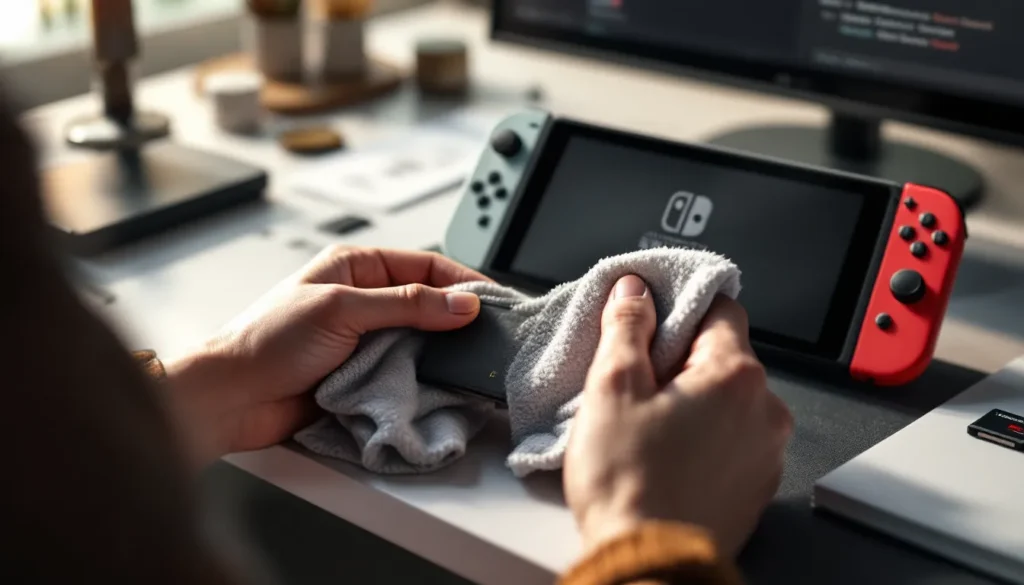
Take your game card and inspect the gold contact area on the back. If you see visible dirt or discoloration, grab a soft, dry, lint-free cloth, the same kind you’d use for glasses or phone screens. Gently wipe the gold contacts in one direction (not circular motions). Avoid paper towels or rough fabrics that can scratch the finish. If the contacts look really grimy, slightly dampen the cloth with distilled water, wipe again, then dry thoroughly before reinserting. Don’t use alcohol or solvents unless you’re certain they’re safe for electronics.
Reinsert The Game Card Properly
Remove the cartridge from your Switch and examine the cartridge slot for any visible debris. Use a flashlight if needed. If you see dust or lint inside the slot, gently blow it out or use a dry cotton swab to clear it, don’t stick anything sharp or metal into the contacts. Now reinsert the cartridge: it should slide in smoothly and click into place. You’ll hear and feel a definite snap when it’s seated correctly. If you have to force it or if it doesn’t click, stop and try again. A properly inserted card makes a clear connection.
Clear The Console Cache
Your Switch stores temporary cache files that can become corrupted. To clear it, go to System Settings > System > Formatting Options > Delete Cache. This doesn’t delete your save data or installed games, it just clears temporary files that might be causing read conflicts. After clearing cache, restart your console and test the game card again. This is quick, safe, and surprisingly effective for intermittent errors.
Advanced Troubleshooting Steps
If the quick fixes didn’t work, it’s time to dig deeper. These steps address software and storage issues that simple resets won’t touch.
Update Your System Software
Navigate to System Settings > System > System Update. If an update is available, install it immediately. Nintendo regularly pushes firmware patches that improve cartridge compatibility and fix card-reading bugs. Make sure your console is plugged into power during the update, don’t let the battery die mid-process, as this can corrupt system files. If you’re unsure what version you’re running, your current firmware number appears on the same screen. As of 2026, you should be running the latest stable version available. Some older versions had known issues with specific game cards that updates resolved.
Rebuild The Game Card Database
Your console maintains a database of installed games and cartridge data. This database can become corrupted if a game crashes or if your Switch loses power unexpectedly. To rebuild it, power off completely, then hold Volume Up + Volume Down + Power simultaneously until you see a boot menu. Select Rebuild the Nintendo Switch Software Database. This process takes several minutes and doesn’t delete saves or installed games, it just rebuilds the index that tells your Switch what games you have. After it finishes, restart normally and test the cartridge. Nintendo Switch Online multiplayer games and single-player titles both benefit from a clean database index.
Delete And Reinstall Game Data
If a specific game keeps throwing errors, the issue might be corrupted save data or cached game files rather than the cartridge itself. Go to System Settings > Data Management > Manage Software and select the problematic game. Choose Delete to remove all associated data. This erases saves, so backup your save files first if you want to preserve them, you can transfer saves between profiles or to Nintendo Switch Online cloud storage. After deletion, reinsert the cartridge and launch the game fresh. It’ll reinstall necessary cache and data. Sometimes this completely fixes card-read errors because it eliminates corrupted local files that were interfering with cartridge communication.
Check Your Console Storage Space
Your Switch needs breathing room. Open System Settings > System > Storage to see how much space remains. If you’re above 90% capacity, your console can’t properly cache cartridge data. Start deleting unused games, archived game data, or screenshots you don’t need. Aim for at least 5-10% free space minimum, ideally more. If you’re using a microSD card, check its capacity too, fill rates above 95% cause performance slowdowns and file corruption. Some large games require 4-6 GB of additional installation space beyond what’s on the cartridge, so insufficient storage directly causes card errors for those titles.
When To Replace Your Game Card
Sometimes troubleshooting reveals that your game card actually is damaged beyond saving. Here’s how to determine whether it’s time to replace it.
Signs Of Physical Damage
Inspect your cartridge carefully. Look for:
- Cracked or broken shell: If the plastic casing is visibly cracked or pieces are missing, the internal circuitry is likely damaged.
- Bent or corroded contacts: Gold contacts should be shiny and smooth. If they’re dark, flaky, pitted, or visibly bent, the electrical connection is compromised.
- Liquid damage indicators: Many cartridges have small white stickers that turn pink or red if exposed to moisture. If this indicator changed color, water damaged the internal components.
- Loose internal components: If you shake the cartridge and hear rattling (beyond the normal click of the card reading head), something inside is broken.
- Labels peeling or deteriorating: While cosmetic, this often indicates the cartridge has been exposed to humidity or extreme temperature changes that may have damaged internal components.
Physical damage is usually permanent. Even if the card occasionally works, it’ll fail unpredictably, and you risk damaging your Switch’s cartridge slot by repeatedly inserting a defective card.
Testing With Another Console
Borrow a friend’s Switch or test your cartridge at a local gaming store if possible. If the card works perfectly in another console, your Switch has the problem, not the cartridge. This narrows your troubleshooting to software, storage, or cartridge slot contact issues on your specific device. If the card fails in every console you test, the cartridge is almost certainly defective. This is the gold standard test: it eliminates guesswork. Is GTA 5 on Nintendo Switch games and other high-profile titles are more commonly tested this way since they’re easier to borrow.
Warranty And Replacement Options
If your game card is within Nintendo’s warranty period (typically one year from purchase), contact Nintendo directly for a replacement. Have your proof of purchase ready. Nintendo will replace defective cartridges if they determine the failure isn’t due to user damage. If your warranty expired, check where you bought the game, many retailers (GameStop, Amazon, Best Buy) offer their own return policies for defective physical media within 30 days. Some credit card companies offer purchase protection that extends warranty coverage. For older, out-of-print games, your replacement options are limited to secondhand markets, so it’s worth exhausting troubleshooting steps before giving up. Digital versions of games avoid cartridge hardware issues entirely, though they require storage space and don’t have the collectible value of physical copies.
Preventing Future Game Card Errors
The best fix is prevention. These habits protect your cartridges and keep your Switch running smoothly.
Proper Storage And Handling
Store game cards in their original cases or a protective cartridge holder, don’t toss them loose in a bag where they collect dust and get scratched. Keep them in a cool, dry place away from direct sunlight, heat sources, and humidity. Extreme temperatures (below 32°F or above 104°F) and moisture damage the internal circuitry, which is why leaving a Switch in a hot car or taking it to the beach is risky. Handle cartridges by the sides, not the gold contacts. Never flex or bend them. If you have kids, establish a “game card handling” rule, they’re not toys to be thrown around. Some collectors use silica gel packets in their storage cases to keep humidity levels consistent. While this might seem excessive, it’s cheap insurance against water damage.
Regular System Maintenance
Clear your console cache monthly, even if you’re not experiencing errors. Manage your storage actively, don’t let it creep above 80% capacity. Periodically check for system updates and install them promptly. Delete games you’re no longer playing instead of letting them accumulate. Use your microSD card for game storage rather than internal storage, so you’re not constantly hitting capacity limits. Avoid hard powering off your Switch during games or updates. The proper shutdown process is important. Nintendo Switch dock not working issues often stem from poor general maintenance habits, and the same applies to cartridge slots, treat your hardware with respect and it’ll last.
Keep Your Switch Updated
Don’t ignore those update notifications. System updates include cartridge compatibility improvements, security patches, and bug fixes specifically designed to prevent card-reading errors. Set your Switch to auto-update when connected to WiFi in sleep mode. This ensures you’re always running the latest firmware without needing to manually check. Newer game releases often require minimum firmware versions, so staying current isn’t just about compatibility, it’s about being able to play new releases day one. A Switch running 2024 firmware on 2026 games is guaranteed to have read issues. Stay current, stay functional. You can check Nintendo Switch charging cable guides for device maintenance tips as well, since proper power management prevents a lot of system corruption.
Conclusion
Nintendo Switch game card errors are frustrating, but they’re usually fixable. Most errors stem from simple causes like dirty contacts, corrupted cache, or outdated software, all of which you can address in minutes without replacing anything. Start with the quick fixes: restart your console, clean your cartridge, clear your cache. If those don’t work, update your system software and rebuild your game database. Only after exhausting software solutions should you consider hardware replacement.
The key takeaway is this: not every error means your cartridge is broken. Test your card in another console if possible, inspect it for physical damage, and ensure your Switch storage isn’t maxed out. Proper handling, regular maintenance, and staying updated with system software prevent the vast majority of card errors before they start. Your Switch and game collection will reward you with years of reliable gaming if you treat them right. And when errors do happen, and they will, eventually, you now have a systematic approach to diagnose and fix them without panic or unnecessary expense. Get back to your games.